RTM CLI
Remember the Milk is a superb and popular task-management web-app. It has a lot of great features and excellent integration with some third-party services (such as Gmail and Google Calendar, Twitter, IM, SMS and smartphone apps). However, I wanted an easy to use command line program that would make displaying and managing my task list even that much quicker and easier. This project aims at creating a full command-line interface for Remember the Milk using the official API.
The latest version of RTM CLI is written in JavaScript and provided as a NodeJS module or pre-compiled binaries.
Contributions Welcome! Feel free to check out the source code on GitHub and contribute to improvements and/or new commands that can extend RTM-CLI's capabilites even further.
Remember the Milk Blog
Featured app: RTM-CLI
Friday, October 5, 2012 by Brendan GanleyFor some people, the command line is a scary place reserved only for the most dire emergencies. For others, it's the quickest and easiest way to do just about everything. If you fall into the second category, take a look at David Waring's RTM-CLI script. If you're a serious command line enthusiast looking to manage your Remember The Milk tasks, this script is a must-have.
Features
RTM CLI aims to be a fully-featured Command Line Interface for your Remember the Milk tasks. Ideally, you should be able to completely manage your tasks directly from the command line.
Currently, RTM CLI offers the following features:
- Viewing Tasks and their lists, priorities, tags, and due dates in a number of different formats. The tasks displayed can optionally be filtered using RTM's Advanced Search Syntax.
- Adding Tasks using RTM's Smart Add Syntax
- Updating Task Properties including priorities, tags, due dates, completed status and lists.
Installation
Node
If you already have NodeJS installed then you can easily install RTM CLI using npm:
npm install -g rtm-cli
This will install the latest version as a global module and will link the rtm executable into your $PATH.
Binaries
Pre-compiled binaries, that don't require a pre-existing Node installation, are available for Linux, Mac, and Windows systems on GitHub:
Usage
For the full usage information, see the project's README on GitHub.
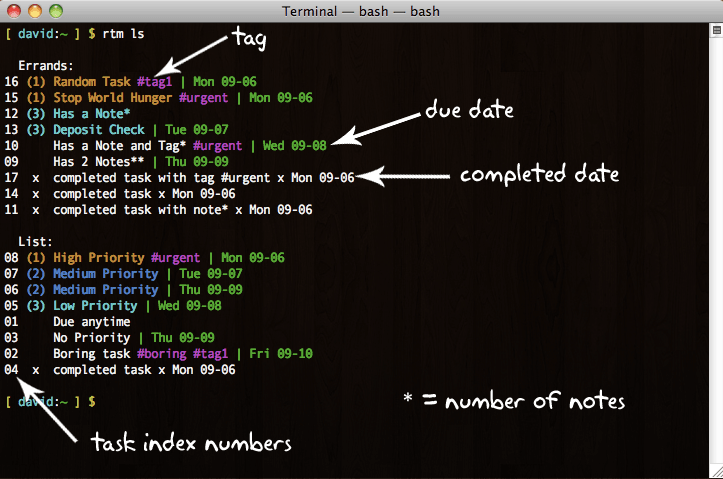
The script's usage is fairly straight forward. Just use rtm followed by a single command. When applying a function to a particular task you need to reference the task by its index number - which is the number to the left of each task (see labeled screenshot on right). When referencing lists or tags, use thier names (case-sensitive).
Filters, used when displaying tasks or clearing completed tasks, use RTM's advanced search syntax.
Interactive Mode: Use rtm without any commands to start the interactive mode, which can be used to give multiple commands to the script.
Listing Tasks
The task properties that are displayed include its priority, name, an indicator of any associated notes (the number of * symbols indicates the number of notes that are associated with the task), any tags (displayed with the # symbol), the task's due date if its incomplete or the completed date for completed tasks.
To display all tasks divided into their lists and then sorted by priority, use:
rtm ls
which will display:
  Errands:
03 (1) Overdue task | Fri 10-12
01 (1) Buy Milk #groceries #urgent | Sun 10-14
06 (2) Update RTM tasks | Sun 10-14
08 (3) Do Laundry | Mon 10-15
02     Due anytime
05     Has two notes**
04     Buy Müsli #groceries | Tue 10-16
07  x  Wash Car x Sun 10-14

  Work:
15 (1) Quit job #urgent | Sun 10-14
16 (1) High Priority | Mon 10-15
17 (2) Has one note* | Mon 10-15
09 (2) Medium Priority | Tue 10-16
10 (3) Low Priority | Wed 10-17
13     No Priority #tag1 #tag2 #tag3
11  x  completed task x Sun 10-14
14  x  completed task with note x Sun 10-14
12  x  completed task with tag #tag1 x Sun 10-14
In order to display tasks divided by their due dates (task items with no due date will be grouped at the bottom) and then sorted by priority, use:
rtm lsd
   Fri 10-12
03 (1) Errands: Overdue task

   Sun 10-14
01 (1) Errands: Buy Milk #groceries #urgent
15 (1) Work: Quit job #urgent
06 (2) Errands: Update RTM tasks
11  x  Work: completed task x Sun 10-14

   Mon 10-15
16 (1) Work: High Priority
17 (2) Work: Has one note*
08 (3) Errands: Do Laundry
14  x  Work: completed task with note x Sun 10-14
07  x  Errands: Wash Car x Sun 10-14

   Tue 10-16
09 (2) Work: Medium Priority
04     Errands: Buy Müsli #groceries
12  x  Work: completed task with tag #tag1 x Sun 10-14

   Wed 10-17
10 (3) Work: Low Priority

   No Due Date
02     Errands: Due anytime
05     Errands: Has two notes**
13     Work: No Priority #tag1 #tag2 #tag3
To display the tasks sorted by priority then by list name, use:
rtm lsp
03 (1) Errands: Overdue task | Fri 10-12
01 (1) Errands: Buy Milk #groceries #urgent | Sun 10-14
15 (1) Work: Quit job #urgent | Sun 10-14
16 (1) Work: High Priority | Mon 10-15
06 (2) Errands: Update RTM tasks | Sun 10-14
17 (2) Work: Has one note* | Mon 10-15
09 (2) Work: Medium Priority | Tue 10-16
08 (3) Errands: Do Laundry | Mon 10-15
10 (3) Work: Low Priority | Wed 10-17
02     Errands: Due anytime
05     Errands: Has two notes**
04     Errands: Buy Müsli #groceries | Tue 10-16
13     Work: No Priority #tag1 #tag2 #tag3
11  x  Work: completed task x Sun 10-14
14  x  Work: completed task with note x Sun 10-14
12  x  Work: completed task with tag #tag1 x Sun 10-14
07  x  Errands: Wash Car x Sun 10-14
To display a weekly planner, use:
rtm planner [start] [filter]
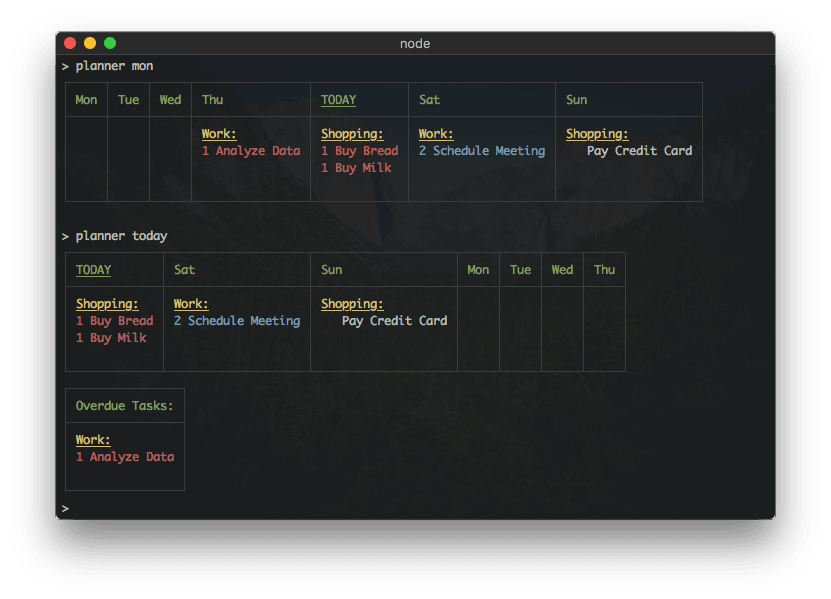
where [start] specifies the start day for the week and can be either sun, mon (default) or today and [filter] is a filter string following RTM's advanced search rules. Tasks without any due date or were due before the first day of the planner will be shown below the planner.
The width of the planner will fit the width of your console window, clipping the names of tasks that are too long to fit in the space provided for a specific day.
Modifying Tasks
Single tasks can be modified by specifying its task index number after the command. When no task index is given, the user will be able to enter multiple tasks and arguments at a prompt. For example, to mark task #15 as complete, the command is:
rtm comp 15
while rtm comp (note the missing task index) will bring up a prompt to enter multiple tasks to mark as complete.
New tasks are added using the following format:
{task name} {due date} p:{priority} l:{list} t:{tag1} t:{tag2}
For example, to add a task to pick up the dry cleaning on Thursday with a priority of 2 to the list named Errands with an urgent tag, the command would be:
rtm add pick up dry cleaning Thurs p:2 l:Errands t:urgent
All commands
See rtm --help for all currently supported functions:
    Usage: rtm [options] <command> [command arguments]


    Options:

      -V, --version            output the version number
      -p, --plain              do not use styled/colored text (overrides --color)
      -c, --color              force the use of styled/colored text
      -s, --status             toggle the display of the status spinner
      -x, --completed [value]  set display of completed tasks (true/false/number of days)
      -d, --hideDue [value]    hide tasks due more than n days from today (false/number of days)
      -f, --config [file]      specify configuration file
      -h, --help               output usage information


    Commands:

      add|a [task...]                     Add a new Task
      addList|al [name] [filter...]       Add a new List or Smart List
      addTags|at [index] [tags...]        Add one or more tags to a Task
      comp|x [indices...]                 Complete one or more Tasks
      decPri|- [indices...]               Decrease the Priority of one or more Tasks
      due [index] [due...]                Set the Due Date of a Task
      edit [index] [name...]              Change the name of a Task
      incPri|+ [indices...]               Increase the Priority of one or more Tasks
      lists|l                             Display all lists
      login                               Add RTM User information
      logout                              Remove RTM User information
      ls [filter...]                      List all tasks sorted first by list then by priority
      lsd [filter...]                     List all tasks sorted first by due date then by priority
      lsp [filter...]                     List all tasks sorted first by priority then due date
      move|mv [index] [list...]           Move Task to a different List
      planner [start] [filter...]         Display tasks in a weekly planner (start: sun, mon, today)
      postpone|pp [indices...]            Postpone one or more Tasks
      pri|p [index] [priority]            Change Task Priority
      remove|rm [indices...]              Remove one or more Tasks
      removeList|rml [name...]            Remove a List
      removeTags|rmt [index] [tags...]    Remove one or more tags from a Task
      renameList|mvl [oldName] [newName]  Rename a List
      reset                               Reset cached task indices
      tags|t                              Display all tags
      uncomp|unc [indices...]             Mark one or more Tasks as not complete
      whoami                              Display RTM user information
      today                               Display prioritized tasks and tasks due or completed today
Open Source
The RTM-CLI project and the NodeJS RTM-API interface that it uses are both open source. Both of the projects are available on GitHub:
- RTM-API: dwaring87/rtm-api - provides helper functions for interacting with the official RTM API using NodeJS
- RTM-CLI: dwaring87/rtm-cli - the CLI for RTM, written in JS and packaged as a NodeJS module
License
MIT License
Copyright (c) 2017 David Waring
Permission is hereby granted, free of charge, to any person obtaining a copy of this software and associated documentation files (the "Software"), to deal in the Software without restriction, including without limitation the rights to use, copy, modify, merge, publish, distribute, sublicense, and/or sell copies of the Software, and to permit persons to whom the Software is furnished to do so, subject to the following conditions:
The above copyright notice and this permission notice shall be included in all copies or substantial portions of the Software.
THE SOFTWARE IS PROVIDED "AS IS", WITHOUT WARRANTY OF ANY KIND, EXPRESS OR IMPLIED, INCLUDING BUT NOT LIMITED TO THE WARRANTIES OF MERCHANTABILITY, FITNESS FOR A PARTICULAR PURPOSE AND NONINFRINGEMENT. IN NO EVENT SHALL THE AUTHORS OR COPYRIGHT HOLDERS BE LIABLE FOR ANY CLAIM, DAMAGES OR OTHER LIABILITY, WHETHER IN AN ACTION OF CONTRACT, TORT OR OTHERWISE, ARISING FROM, OUT OF OR IN CONNECTION WITH THE SOFTWARE OR THE USE OR OTHER DEALINGS IN THE SOFTWARE.